Your inbox holds a pile of YouTube mail: someone replied to a comment you left three weeks ago, a channel you forgot you follow posted a community update, and a “recommended for you” digest showed up again on Saturday morning. You never chose most of it. YouTube emails are notifications, and the switch that turns them off sits in your YouTube settings, not at the bottom of any single message.
To stop YouTube emails, change YouTube’s own settings instead of deleting each message. On youtube.com, click your profile picture, choose Settings, then Notifications. Under Email notifications, turn off the Permission toggle labeled “Send me emails about my YouTube activity and updates I requested.” Account, security, and legal emails still arrive by design.
Why does YouTube keep emailing me?
YouTube mirrors activity from your account and your subscriptions into your inbox, and its defaults leave most of that switched on. A reply to your comment, a mention, a post from a channel you follow, a batch of recommended videos, a product announcement: each one can trigger an email until you tell it to stop. You opted into the whole stream when you created the account, and YouTube left the categories on.
One thing surprises people who remember the old flood. YouTube stopped sending the per-upload subscription email in August 2020. According to the company, reported by Social Media Today in 2020, fewer than 0.1 percent of those alerts were ever opened, so it moved new-video notifications to app push and the Subscriptions feed. The mail you get now is a different mix: channel activity, comment replies, recommendations, and digests.
That makes YouTube mail a clear case of graymail, the messages you technically agreed to but never quite decided to keep. It is not spam, so marking it as junk is the wrong tool and teaches your provider to filter mail you might actually want, like a sign-in alert. The durable fix is to stop the notifications at the source, where YouTube generates them.
How do I turn off YouTube email notifications?
Open your YouTube notification settings and switch off the Email notifications permission. YouTube keeps every optional email under one section, so you can quiet the whole stream without opening a single message. As of 2026 the desktop path looks like this, though YouTube reshuffles these labels from time to time:
- Open Settings. Sign in to youtube.com, click your profile picture in the top-right corner, then choose Settings.
- Go to Notifications. In the left menu, click Notifications. The page splits into general (push) settings and an Email notifications section lower down. YouTube’s guide to managing notifications describes the same two blocks: under General you pick mobile and desktop alerts, and under Email notifications you choose which emails you want.
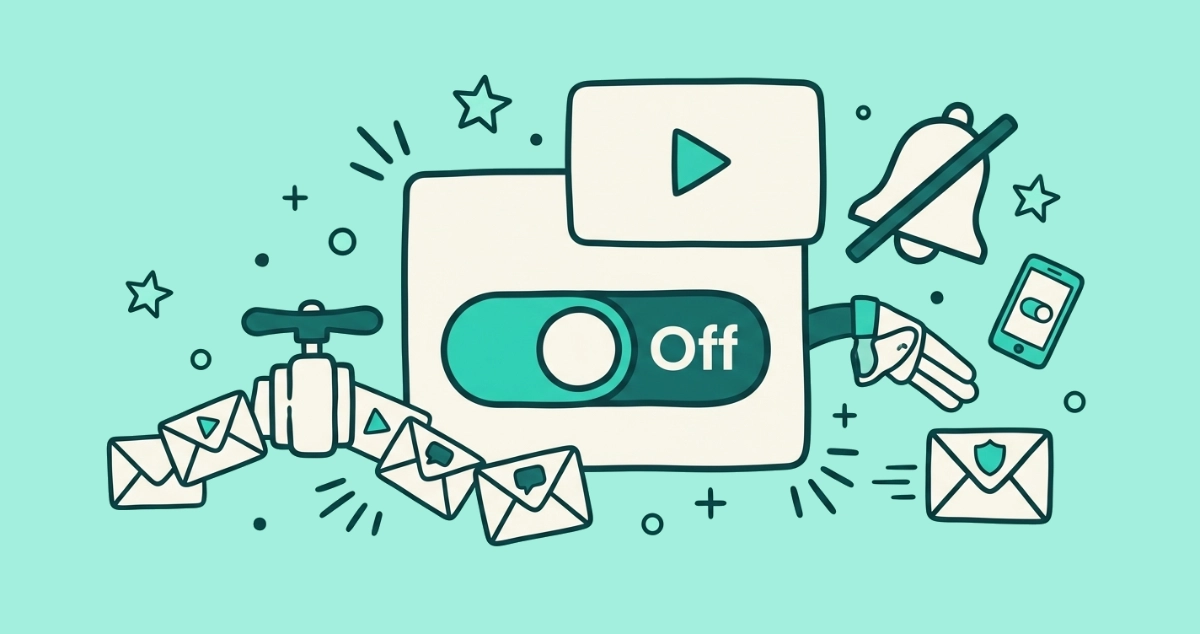
- Turn off the Permission toggle. In the Email notifications section, find the master switch labeled “Send me emails about my YouTube activity and updates I requested” and turn it off. That one toggle flips every optional category off together.
- Or turn off categories one by one. Under Your preferences, leave the master toggle on and switch off only the categories you dislike, such as recommendations or channel activity, while keeping the ones you want.
Expected outcome: YouTube stops queuing optional emails and your inbox goes quiet within a day or two. If you would rather jump straight there, the signed-in address youtube.com/account_notifications opens the same page, and YouTube’s help article on opting in or out of emails documents the section.
Which YouTube email categories can you turn off?
YouTube groups its optional email under a handful of category toggles, so you can use a scalpel instead of the master switch. Leaving the Permission toggle on and clearing individual boxes lets you keep a couple of useful alerts while killing the noise. As of 2026 the categories under Email notifications include:
- Activity on my channel: comments, replies, and interactions on videos you posted
- Replies to my comments: responses to comments you left on other videos
- Mentions: posts and comments that tag your channel
- Subscriptions: activity and updates from channels you follow
- Recommended videos: the “what to watch” digests picked for you
- Product updates and personalized recommendations: feature announcements and promotional nudges
Recommendations, channel activity, and product updates are the usual culprits behind a full inbox. Turn those three off first and the volume drops sharply, even if you leave comment replies on so you still hear when someone answers you.
How do I stop YouTube emails on the phone?
The YouTube app’s Notifications screen mostly controls push alerts, not email. Tapping your profile photo, then Settings, then Notifications in the app lets you mute what buzzes your phone, but it routes push toggles to your device settings and does not expose the full email preferences. For email specifically, the reliable route is the web.
Open youtube.com in your phone’s browser, sign in, and follow the same path: Settings, then Notifications, then the Email notifications section, and turn off the Permission toggle there. The change syncs to your Google account, so switching email off on the phone also silences it on desktop and any other device signed in to the same profile. You only have to do it once.
Why are some YouTube emails controlled by my Google Account?
YouTube is a Google product, so a slice of its mail is governed by your broader Google Account rather than the YouTube notifications page. General product updates, creator announcements, and marketing-style emails can trace back to the account-level communication preferences Google keeps for all its services. If promotional YouTube mail keeps arriving after you clear every YouTube toggle, that is the place to check next.
Google documents the route in its help page on managing emails from Google services: open your Google Account, click Data & privacy on the left, and under “Emails from Google services” click Manage email preferences. Same account, different panel from YouTube’s.
The quickest way to catch these is the email itself. Every optional YouTube email carries an Unsubscribe link in its footer, and YouTube’s own help page says that link lets you unsubscribe from certain types of email or from all emails from YouTube. Many mail apps also read the List-Unsubscribe header YouTube attaches and show their own control at the top of the message, which our guide on unsubscribing without opening an email walks through. That control follows RFC 8058, the 2017 standard behind one-click unsubscribe, which Google’s own sender guidelines have required of every 5,000-a-day bulk sender since February 2024. Either click lands you at the right off switch faster than digging through two settings screens.
Which YouTube emails can you never turn off?
Account, security, legal, and privacy emails ignore your preferences on purpose. Password resets, sign-in alerts from a new device, two-step verification codes, terms-of-service updates, and privacy notices arrive no matter how many toggles you flip, because they protect your account rather than promote activity. Google says as much on its email-preferences help page: it sends some emails, like service announcements, that you cannot opt out of.
The law backs that up. The FTC’s CAN-SPAM compliance guide treats a message as transactional or relationship mail when its primary purpose is confirming a transaction, giving warranty or security information, or notifying you of a change to your account, and those messages sit outside most of the Act, including the opt-out requirement. It is the same carve-out every major service keeps.
Do not try to defeat these with a filter or a block. The senders behind them, addresses in the youtube.com and google.com families, are the ones you want reaching you the moment something changes on your account. Everything else in the Email notifications section is optional and yours to silence.
Why do I still get YouTube emails after turning them off?
Three reasons cover almost every case. The setting has not propagated yet, and a few already-queued emails land in the hours after you save. You turned off one category and left another on, so the recommendations stop while the comment replies keep coming. Or the message is an account, security, or Google Account marketing email that the YouTube page alone does not control.
Give it a couple of days before you decide it failed. Gmail’s own help on managing your subscriptions warns that “it can take a few days for the sender to unsubscribe you,” and Google’s sender guidelines FAQ asks any bulk sender to fulfill an unsubscribe request within 48 hours.
If a specific YouTube address keeps mailing you past all of that, treat it like any stubborn sender and cut it off at your end. Gmail Help explains that blocking a sender routes all their future mail to Spam, and Google notes on the subscriptions page that blocking does not unsubscribe you from the list. Filtering it into a folder works the same way, and our guide on how to block an email sender covers the few taps for Gmail, Outlook, and Apple Mail. Keep block as a last resort here, since it can also hide the security alerts you want, so reach for it only after the settings route fails.
What about the rest of your inbox?
YouTube is one sender among dozens. Fixing its settings quiets a loud voice, and then the retailer newsletters, the abandoned-cart nudges, and the app updates you forgot you agreed to are still there. That refill is the pattern behind why your inbox has more newsletters than it used to: you clear the inbox, and it fills back up from senders you never audited in one place. YouTube’s toggles only stop YouTube, so for the strangers and stragglers our full guide to stopping spam emails in Gmail and Outlook walks through marking as spam, blocking, filtering, and aliases as well.
Settings pages like YouTube’s only exist for the handful of platforms big enough to build one. For the long tail of newsletters, you are back to unsubscribing one by one. Rather than clearing them one sender at a time, you can mass unsubscribe in Gmail or compare the best unsubscribe apps that review every subscription at once. Email Unsubscriber reviews every subscription sender in your Gmail or personal Outlook inbox in a single pass, so you decide about all of them at once instead of hunting through separate settings menus. The scan runs in your browser, your email content never reaches our servers, the access is read-only, and you pay once rather than monthly. YouTube’s own toggles are still the right fix for YouTube; the app is for everything without a settings page.
The takeaway
The lasting way to stop YouTube emails is YouTube’s own settings, not the unsubscribe link at the bottom of one message. Open Settings, go to Notifications, and in the Email notifications section turn off the Permission toggle, or clear the noisiest categories like recommendations and channel activity by hand. Expect account, security, and legal emails to keep arriving, since no toggle controls those, and check your Google Account if promotional mail lingers. When the rest of your inbox refills from senders without a settings page, that is a job for a tool that reviews every subscription at once.