You open Gmail, see forty promotional newsletters you never read, and want to stop all of them in one move. You clicked unsubscribe on a couple last week and they came back anyway. There is a fast way through this, but the “unsubscribe from everything at once” button you are picturing does not exist in Gmail yet.
Gmail has no single button that unsubscribes from every sender at once. The closest built-in option is Manage subscriptions, rolled out in July 2025, which lists senders by frequency and opts you out one at a time. Deleting or filtering Promotions clears the mail but does not unsubscribe. Third-party apps batch the review.
Can you mass unsubscribe from all emails in Gmail at once?
Not with one tap. Gmail handles unsubscribing one sender at a time, because each opt-out sends a separate request to a different company. The 2026 reality is three real ways to unsubscribe, each with a different trade-off:
- Gmail’s built-in Manage subscriptions panel (best starting point, one sender at a time).
- The per-email Unsubscribe link near the sender’s name.
- A third-party unsubscribe app that reviews every sender in one pass.
Pick based on how many senders you are clearing and how much you trust an app with your inbox. There is a fourth move people reach for, deleting or filtering the Promotions tab, but it clears mail without unsubscribing you. If your goal is a tidy inbox today rather than fewer emails tomorrow, that is the delete-all-Promotions route.
How to use Gmail’s Manage subscriptions panel
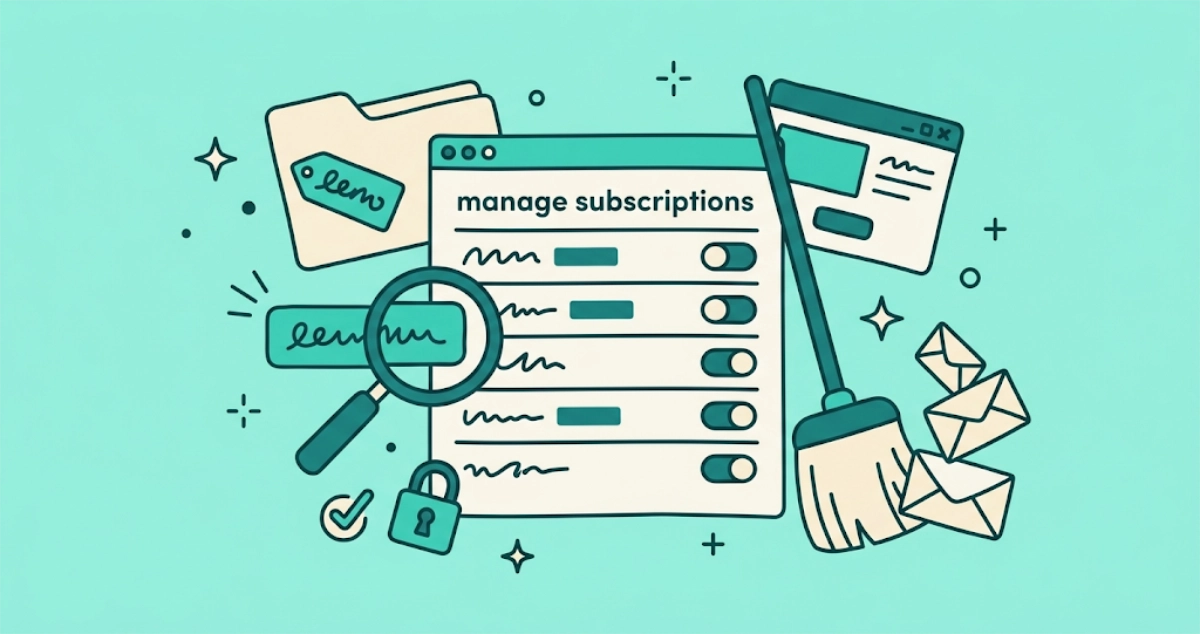
Manage subscriptions is Gmail’s own answer to subscription overload, and for most people it is the right first stop. Google rolled it out from July 8, 2025 on the web, followed by Android and iOS, according to Google’s announcement and the Workspace update log. Here is how to work it:
- Open the left menu. Click the three-line (☰) menu in the top-left corner of Gmail. On the mobile app, tap the same icon.
- Select Manage subscriptions. It sits in the left navigation below your folders. On desktop you may need to click More to reveal it.
- Read the sender list. Gmail sorts your active subscriptions by the most frequent senders and shows how many emails each one sent you in the past few weeks. The worst offenders float to the top.
- Tap a sender to review. Every recent message from that sender appears in one place, so you can confirm you want out before you act.
- Click Unsubscribe. Gmail sends the unsubscribe request to the sender on your behalf. No website opens, no form to fill.
Expected outcome: the sender is opted out. Gmail Help adds two useful details here. One unsubscribe in this panel covers “all active mailing lists related to the sender,” not just the list the last email came from. And “it can take a few days for the sender to unsubscribe you,” so a straggler or two is expected. Your existing emails from that sender stay put until you delete them.
Gmail’s panel does a lot right. It is free, it needs no extra app or permission, the frequency sorting surfaces the senders worth cutting first, and the one-click action is the safe RFC 8058 path rather than a link into a browser. For a few dozen senders, it is the tool to reach for.
Its limits are just as real. You unsubscribe one sender at a time with no “select all.” It works in Gmail only, so a separate Outlook or Yahoo inbox is untouched. It shows no history of what you opted out of, and it has no way to flag a sender who ignores the request and keeps mailing. When a sender pushes you to its own website instead of accepting the request, Gmail offers Block instead, which routes future mail to spam rather than opting you out.
By 2026 the panel has finished its staggered rollout and is broadly available on personal and Workspace accounts across web, Android, and iOS, so most people now have it. For a full walkthrough of the panel on every platform, how its frequency sorting works, and the senders it silently leaves out, see our deep dive on Gmail’s Manage subscriptions panel. It is still a one-sender-at-a-time tool, which is the gap the batch methods below close.
How to unsubscribe from a single email in Gmail
When you are reading one annoying newsletter, you do not need the panel at all. Gmail shows an Unsubscribe link right next to the sender’s name at the top of the message when the email carries a valid List-Unsubscribe header. Click it, confirm, and Gmail sends the request for you. One caveat comes straight from Gmail Help: the per-message link “might only unsubscribe you from a single mailing list from the sender,” where the panel covers every list that sender runs.
That header is not a Gmail invention. RFC 2369, published in July 1998, defined List-Unsubscribe as the field that “describes the command … to directly unsubscribe the user.” RFC 8058, from January 2017, added the one-click layer on top: the sender includes List-Unsubscribe-Post: List-Unsubscribe=One-Click, and your mail provider fires an HTTPS POST at the URL carrying no cookies and no login. Since February 1, 2024, Google has required that mechanism of anyone sending more than 5,000 messages a day to personal Gmail accounts, per its sender guidelines, and it tells those senders to fulfill unsubscribe requests within 48 hours.
If the link is missing, the sender either falls under that volume threshold or has not adopted the standard, and you fall back to the unsubscribe link in the email footer. Before you click a footer link, it is worth a quick sanity check that it is real and not a phishing trap. Our guide on whether it is safe to click unsubscribe covers the 30-second version.
Doesn’t deleting the Promotions tab count as unsubscribing?
No. Deleting mail, filtering it into a label, or moving it to a folder clears what already arrived and does nothing to the sender’s list. You stay subscribed, the next campaign lands the moment they send it, and your filter has to keep running forever to hide it. Filters and mass delete treat the symptom, not the cause, and anyone selling them as a “mass unsubscribe” trick is blurring the two.
The clearing itself is useful housekeeping, just not the job this guide is about. Need to empty the promos already piled up? See how to delete all Promotions in Gmail, which covers the category:promotions search operator, select-all, and an auto-delete filter. Come back here when you want the senders to stop.
Are third-party mass unsubscribe apps safe?
Some are, some are not, and the deciding factor is what access the app requests and what it does with your email once it has it. A third-party app is the only route that reviews every sender across your whole inbox in one pass, which is why the category exists. The trade-off is that you are handing a company a view into your mailbox, so the privacy terms matter more than the feature list. Our full guide to whether unsubscribe apps are safe gives you a five-question checklist that works against any of them.
The cautionary tale is Unroll.me. In December 2019 the FTC finalized a settlement over the company’s claim that it would not “touch” users’ personal emails. The FTC found that Unrollme shared users’ e-receipts from completed transactions with its parent company, Slice Technologies, which sells anonymous purchase information drawn from them in market-research analytics products. The order made Unrollme delete those stored e-receipts from both companies’ systems unless the affected users expressly agreed to keep them. The service was free because the users were the product.
Before you connect any unsubscribe app, ask three questions:
- Where does it process your email? On the company’s servers, or in your browser? Cloud processing means your mail leaves your device.
- How long does it keep access? Tools that store a persistent OAuth token can read your inbox indefinitely, long after you finish the cleanup.
- What does it do with the data? Read-only and never-sold is a very different deal from anonymized-and-monetized.
Full-service cloud tools such as Clean Email or Leave Me Alone do more than unsubscribe, and the extra features are real. They add auto-rules, digests, screeners, and automatic deletion, which needs broader mailbox access than a pure unsubscribe pass. They also bill on an ongoing basis: Clean Email’s plans page lists monthly and yearly subscriptions, and Leave Me Alone’s pricing page sells monthly and yearly plans next to a one-off seven-day pass. If you want a whole mailbox-management suite, that is a fair trade. If you only want to unsubscribe, it is more access than the job requires. Our roundup of the best unsubscribe apps compares the main options on price, data handling, and access if you want to weigh them side by side.
This is the gap Email Unsubscriber was built for. The scan runs in your browser, so your email content never reaches our servers. The access is read-only, and there are no refresh tokens, so the session dies in about an hour instead of lingering. It flags senders who keep emailing after you opt out, keeps an audit log of every unsubscribe, and costs a single one-off payment rather than a monthly fee. You do not have to take that on faith. The architecture is documented on our security page, and the auth service is open source. When you are ready, you can run a scan and review every sender in one pass.
Which method should you use?
It depends on how many senders you are clearing, whether you use more than one inbox, and how much you care about a sender who ignores your opt-out.
| Method | Actually unsubscribes? | Batch review? | Beyond Gmail? | Extra access needed | Cost |
|---|---|---|---|---|---|
| Manage subscriptions | Yes | No, one at a time | No, Gmail only | None | Free |
| Per-email Unsubscribe link | Yes | No | No | None | Free |
| Delete / filter Promotions | No, only hides mail | Yes | No | None | Free |
| Cloud unsubscribe suite | Yes | Yes | Often | Full read/write, persistent | Subscription, or a timed pass |
| Email Unsubscriber | Yes | Yes | Gmail + Outlook | Read-only, browser-only, ~1h session | One-off, see pricing |
For a light cleanup, Gmail’s built-in Manage subscriptions panel is the right call and costs nothing. For years of buildup across a large inbox, or if you want to catch senders who keep mailing after you leave, a browser-based app that reviews everything at once saves the repetitive clicking without asking for standing access to your mail.
Why do emails keep coming after you unsubscribe?
Unsubscribing is not always instant, and sometimes it is being ignored. A sender has a grace period of up to 10 business days under the U.S. CAN-SPAM Act, so a message or two after you opt out is normal and legal. The FTC’s CAN-SPAM compliance guide states it flatly: “You must honor a recipient’s opt-out request within 10 business days,” and the opt-out mechanism itself has to keep working for at least 30 days after the message goes out. If mail is still arriving well past that window, the sender is in violation, and you have options beyond waiting. Our guide to your rights when unsubscribe fails covers how to document it and where to report it.
The other common cause is simpler: one company, several lists. You left the promotions list but stayed on the “back in stock” and “we miss you” lists, which is exactly the gap Gmail Help flags on the per-message Unsubscribe link. Look for a manage preferences page rather than a single unsubscribe link, and turn all of them off at once. More causes and their fixes in unsubscribed but still getting emails?
The takeaway
There is no one button in Gmail that unsubscribes from everything, and any tool promising that is either using the built-in one-at-a-time panel behind the scenes or deleting mail rather than opting you out. Start with Manage subscriptions for a quick pass. Use the per-email link for one-offs. Skip the filter-and-delete tricks if your goal is to stop the mail. Reach for a browser-based app when the backlog is large and you would rather not hand your inbox to a company that keeps the keys.